If you are preparing for board exams, JEE, NEET, UPSC, or a university semester, you already have the biggest problem in studying: too much material and too little time. Textbook chapters, coaching notes, PDFs, YouTube lectures — it piles up faster than you can revise it.
NotebookLM, Google’s free AI study tool, solves a very specific part of this problem: it turns your own study material into flashcards, quizzes, mind maps, audio explanations, and a personal tutor that answers questions only from your sources — with citations showing exactly which page the answer came from.
That last part matters. Unlike ChatGPT or Gemini, NotebookLM will not confidently invent an answer from the open internet. If it’s not in your uploaded notes, it says so. For exam prep, where a wrong “fact” costs you marks, this is the feature that makes it worth using.
Here’s exactly how to set it up, step by step.
What You Need
- A free Google account
- Your study material in any of these formats: PDFs, Google Docs, Google Slides, pasted text, website links, or even YouTube lecture links
- 15 minutes to set up your first notebook
NotebookLM is free at notebooklm.google.com. The free plan is enough for most students; paid Google AI plans raise the limits on notebooks and daily generations.
Step 1: Create One Notebook Per Subject
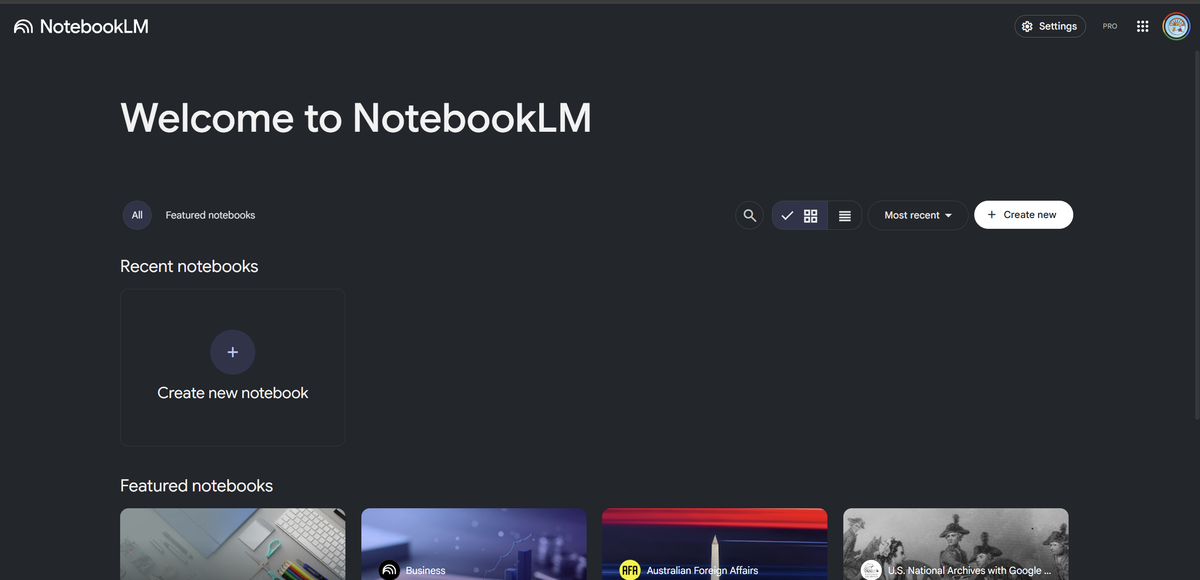
Go to notebooklm.google.com, sign in, and click Create new notebook.
The single biggest mistake students make: dumping every subject into one notebook. Don’t. NotebookLM answers questions based on the sources in the current notebook, so keep them clean — one notebook for Physics, one for History, one for each UPSC GS paper. Name them clearly (“Class 12 Chemistry — Boards 2027”).
Step 2: Upload Your Sources
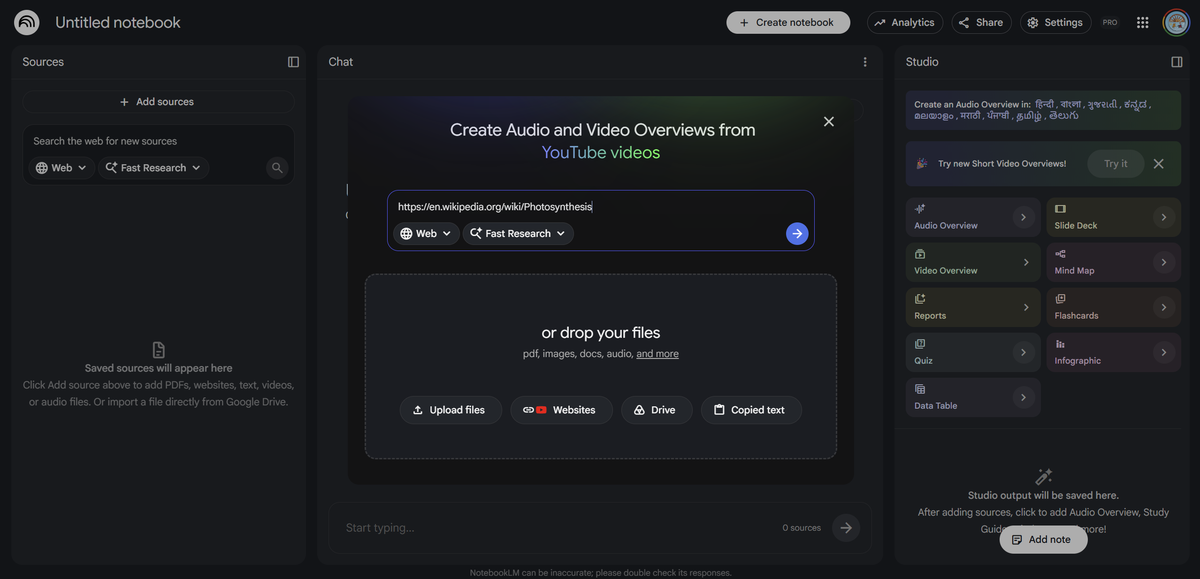
Click Add source and upload your material:
- NCERT chapters and textbook PDFs — the backbone for boards, JEE, NEET
- Your own class/coaching notes — scan handwritten notes to PDF with your phone (Google Drive’s scan feature works fine)
- Previous year question papers — hugely underrated; more on this in Step 6
- YouTube lecture links — paste the URL and NotebookLM reads the transcript
- The official syllabus — so you can ask “which topics from the syllabus are NOT covered in my notes?”
Each notebook can hold dozens of sources. Upload a whole unit at once.
Step 3: Get the Big Picture with a Mind Map and Study Guide
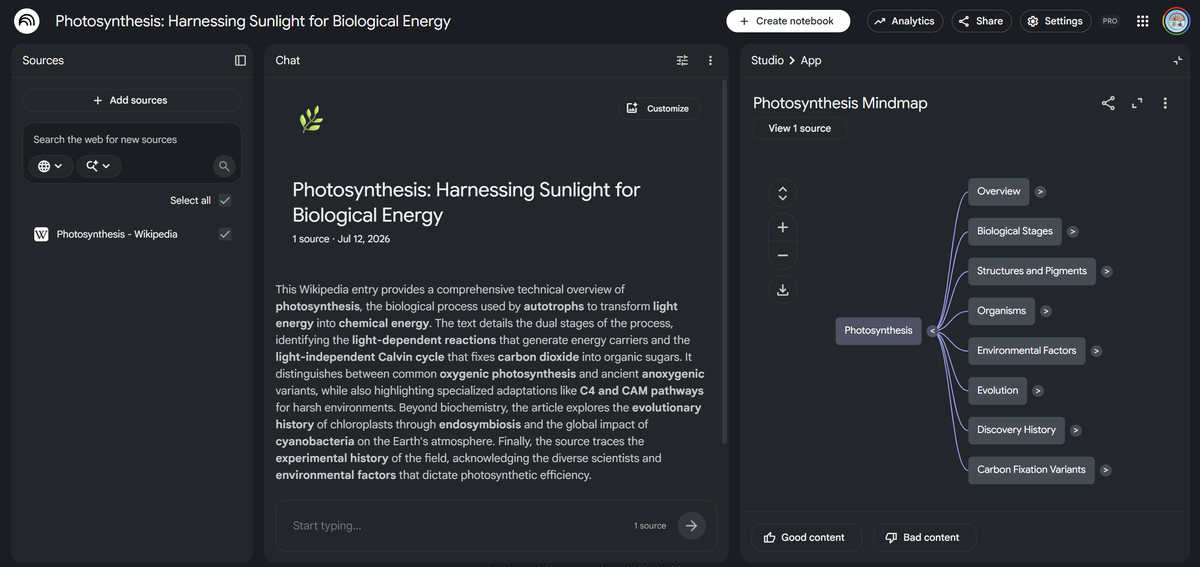
Before drilling into details, orient yourself. In the Studio panel:
- Click Mind Map — NotebookLM draws a visual diagram of the entire unit, branching from main concepts to sub-topics. Perfect for seeing how a chapter fits together, and for last-day revision.
- Click Reports → Study Guide — you get a structured summary with key terms, likely short-answer questions, and essay prompts, all pulled from your material.
Ten minutes here beats an hour of aimless re-reading.
Step 4: Turn On Learning Guide — Your Personal Tutor
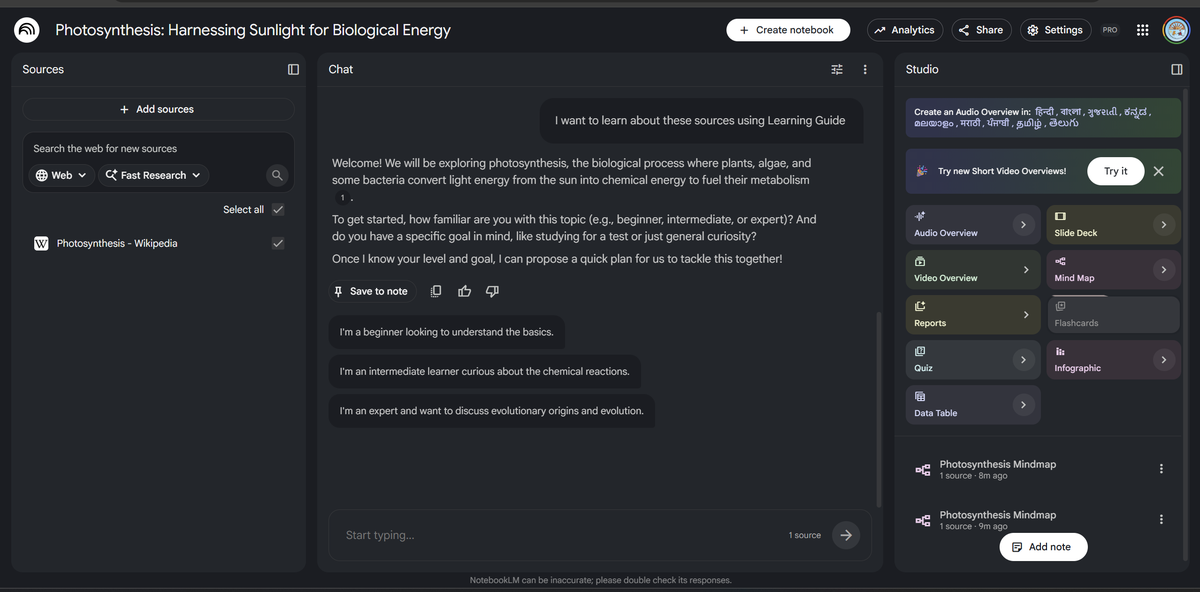
This is NotebookLM’s most underused feature. In chat settings, switch the chat style to Learning Guide.
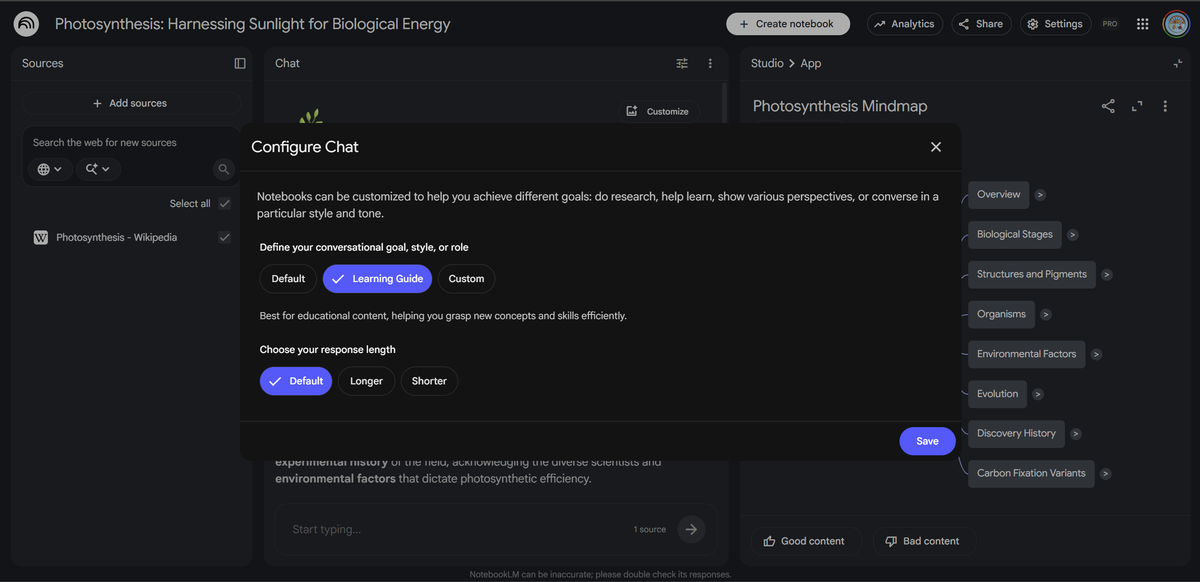
Now, instead of just handing you answers, NotebookLM behaves like a tutor: it asks you probing questions, breaks problems into steps, and adapts explanations when you’re confused. Try prompts like:
- “Quiz me one question at a time on electrochemistry. Wait for my answer before telling me if I’m right.”
- “I don’t understand integration by parts. Explain it step by step using my notes, then give me a practice problem.”
- “Explain this like I’m revising the night before the exam.”
Every answer comes with a numbered citation. Click it and you jump to the exact paragraph in your notes — so you can verify, and so the original context sticks in your memory.
Step 5: Generate Flashcards and Quizzes for Active Recall
Decades of learning research agree on one thing: testing yourself beats re-reading. NotebookLM automates it:
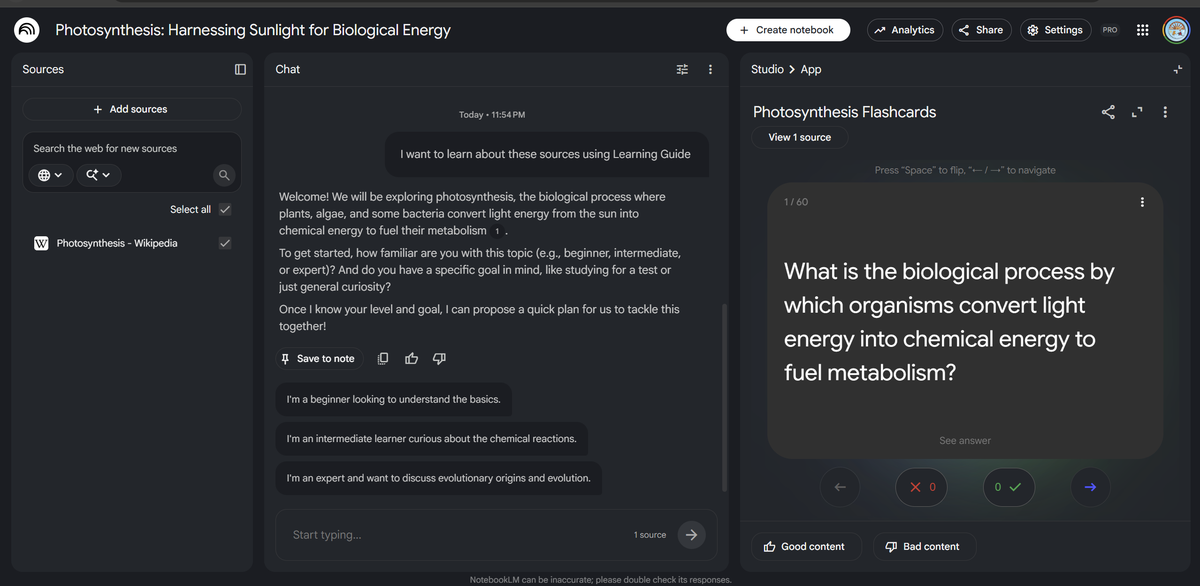
- In Studio, click Flashcards — it generates a deck from your sources. You can set the difficulty and the topic (“only make cards from Chapter 4”).
- Click Quiz — it builds a multiple-choice test. Get a question wrong? Hit Explain and it shows you why, with the citation.
- Both can be shared with a link — one person in your study group makes the deck, everyone revises from it.
Do this at the end of every study session: 10 flashcards + a 5-question quiz on what you just covered. That’s active recall with zero extra effort.
Step 6: The Previous-Year-Papers Trick
Upload 5–10 previous year question papers into the notebook along with your notes. Then ask:
- “Which topics appear most frequently in these papers?”
- “Generate 10 new questions in the same style and difficulty as these papers, based on my notes.”
- “Which questions in these papers can NOT be answered from my notes?” — this instantly exposes gaps in your material.
This turns NotebookLM into a question-predicting machine grounded in real exam patterns — something no generic AI chatbot can do, because it’s working from your exam’s actual history.
Step 7: Revise on the Go with Audio Overviews
Click Audio Overview and NotebookLM produces a podcast-style discussion of your material — two AI hosts talking through your actual notes. Formats include:
- Deep Dive — full conversational walkthrough of a topic
- Brief — a quick summary for a bus ride
- Debate — two hosts argue different sides; excellent for UPSC mains and essay subjects where you need multiple perspectives
Download the audio and listen during your commute. It’s not a replacement for problem practice, but it’s a genuinely productive use of otherwise dead time.
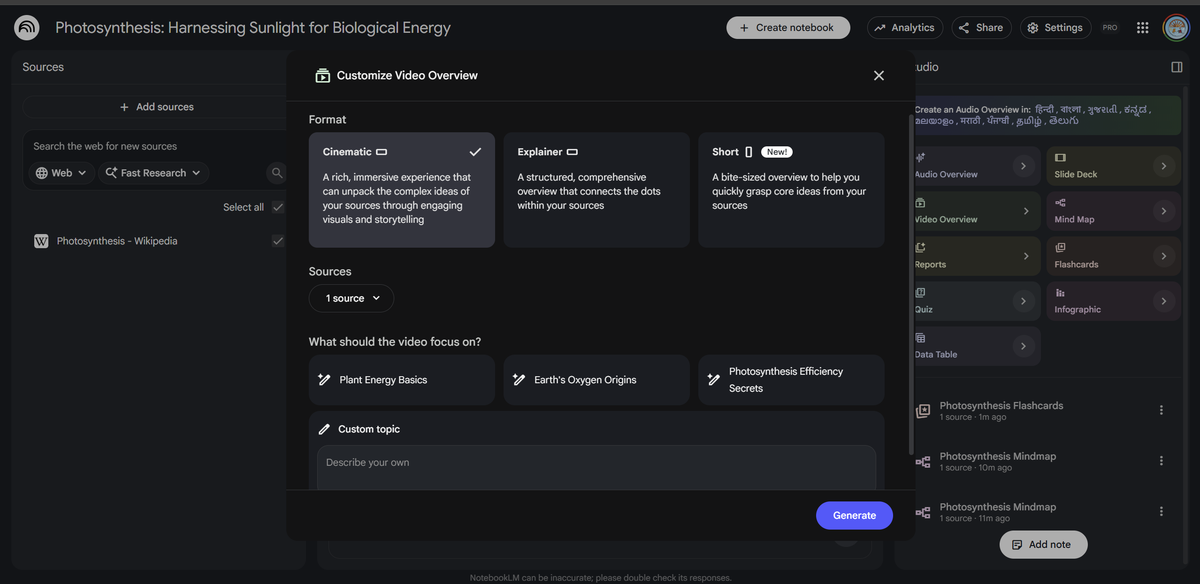
Prefer watching to listening? The same Studio panel also has Video Overviews — choose the Explainer format for a structured walkthrough of your unit, or Short for a quick recap.
Step 8: The Exam-Week Routine
| Day | What to do in NotebookLM |
|---|---|
| 7–5 days before | Mind Map + Study Guide per unit; fix gaps found via the syllabus check |
| 4–3 days before | Learning Guide sessions on your weakest topics; previous-year-paper analysis |
| 2 days before | Full quiz per unit; re-quiz everything you got wrong |
| 1 day before | Flashcard sprint + Brief audio overviews; sleep on time |
Honest Limitations
To keep this review honest — NotebookLM is not magic:
- It can’t do your maths practice. It explains methods well, but you still need to solve problems by hand.
- Scanned handwriting must be legible. Bad scans = bad answers.
- Free plan has daily limits on audio generations and notebook counts. For most students it’s plenty; heavy users may hit caps during exam week, so generate audio overviews in advance.
- It’s only as good as your sources. Upload sparse notes, get sparse answers. Feed it the NCERT + your notes + past papers, and it’s brilliant.
FAQ
Is NotebookLM free for students?
Yes. The core features — sources, chat, flashcards, quizzes, mind maps, audio overviews — are free with a Google account. Paid Google AI plans raise usage limits.
Is it better than ChatGPT for studying?
For studying your own material, yes — answers are grounded in your uploaded sources with citations, so it doesn’t hallucinate facts from the internet. For general questions or maths problem-solving, a general chatbot still helps.
Can I use it for UPSC/JEE/NEET?
Yes — it’s format-agnostic. Upload whatever material your exam requires. The previous-year-papers trick in Step 6 works especially well for pattern-heavy exams.
Does it work in Hindi or other Indian languages?
NotebookLM handles sources in many languages and you can ask it to respond in the language of your choice, though English sources currently give the most reliable results.
Have an exam coming up? Set up your first notebook tonight — it takes 15 minutes, and your future 11-pm-before-the-exam self will thank you. For more hands-on AI guides, browse our AI Tutorials & Guides.